 Knowledge Base Portal
This guide is applicable to all the Yealink phones and Yeastar Cloud PBX v81.8.0.7+.
Note: For the IP phone with different firmware version, the web GUI may be different.
Note: If your phone was supplied by ARATIS then registration will be automatic. In some instances the phones may require login, see the Auto-Provision instructions.
If a BYOD device, then you will need to manually enter the registration settings.For a list of supported devices please see here.
Auto Provision
When powering on a new phone for very first time you should be prompted for login, you may also enter the Auto-Provision settings manually.
Step 1: Power on phone
Step 2: If prompted on screen, enter the USER NAME and PASSWORD for authentication.
Use your extension number as the USER NAME and the Voicemail PIN as the PASSWORD. ** Your welcome email will provide you with this information**
Alternative: If you do not see login prompt, disable trusted certificates and try again. If you manually enter auto-provision information into the phone web page you will need to use the registration password and not the voicemail PIN!!!
Step 1: Log in the web page of the phone (type phones IP address into browser)
Username: admin
Password: admin
Step 2: Click Security Tab and click left side tab – “Trusted Certificates”
Step 3: Change Selection “only allow trusted Certificates” to disabled
Step 4: Confirm and Phone will reboot
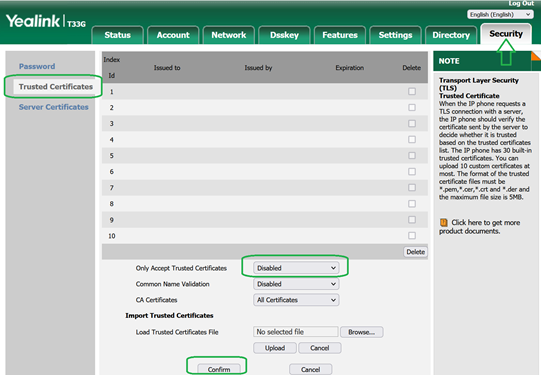
Step:5 Phone will reboot and see if prompted to enter USERNAME and PASSWORD.
Step:6 Manually enter auto-provision information by logging back into the web page of the phone, Click Settings tab and choose Auto Provision
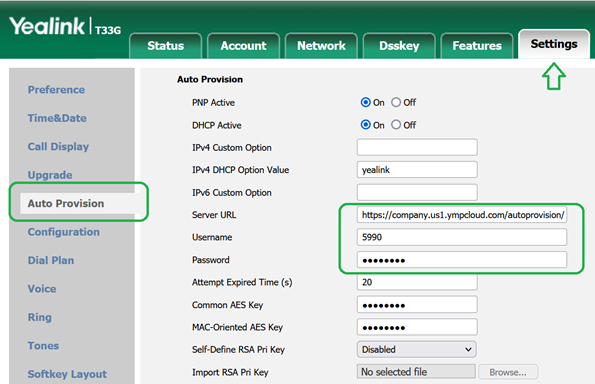
Serval URL: This is provided by Aratis support
example: https://company.us1.ympcloud.com/autoprovision/365414a0bbfrc90c
User Name: Fill in the extension number.
Password: Fill in the Registration Password (Not voicemail PIN)
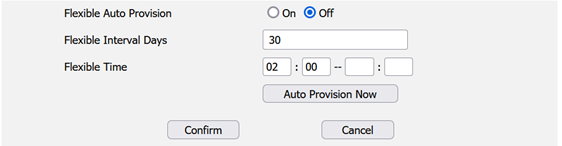
Step7: Select Confirm
Select Auto Provision now
Wait for phone to register
Non-Auto Provision
Method
Note: Please contact support for the proper settings.
Note:To factory reset Yealink phone you may hold down “ok” button for 10 seconds.
Note:Older phone may not have updated certificates and trusted certificates may need to be disabled.
Note: If you enter incorrection registration information too many times the PBX may block your IP address.
- Log in the web page of the phone.
Username: admin
Password: admin
- Click Account tab, and choose "Account 1" to configure.
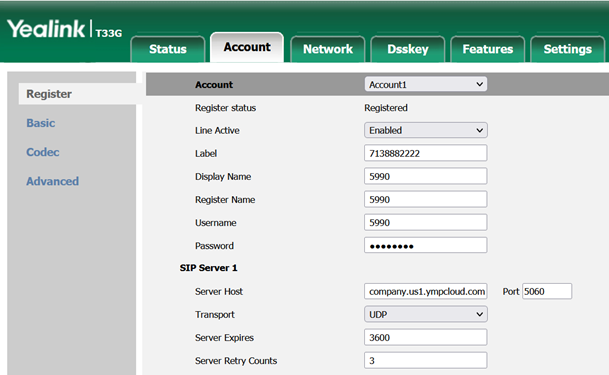
Account: Choose an account.
Line Active: Enabled
Label: Set the name you want to appear on the phone screen.
Display Name: Set the name you want to appear on the other phone's screen when calling out.
Register Name: Fill in the extension's Register Name.
User Name: Fill in the extension number.
Password: Fill in the extension's Registration Password.
Server Host: Fill in the domain of your PBX.
ie:customer.us1.ympcloud.com
Port: Fill in the same SIP port of the PBX.
Transport: Choose the same transport protocol of your PBX.
Click Confirm.
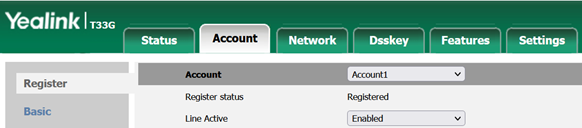
If the extension is registered, you can see the Register Status shows "Registered".
Support Knowledge Base: https://support.aratis.io
Email Support:support@aratis.io