 Knowledge Base Portal
Streamline your login experience with Aratis Telephone Service by leveraging Single Sign-On (SSO) integration with Microsoft Entra ID. This guide explains how to configure and use SSO to securely access Linkus UC Clients with your Microsoft account credentials.
Overview
The SSO feature allows users synchronized from Microsoft Entra ID to log in to Aratis Linkus UC Clients seamlessly using their Microsoft accounts. This eliminates the need for separate credentials, enhancing both security and convenience for your team.
Prerequisites
Before setting up SSO with Aratis Telephone Service, ensure the following requirements are met:
- Integration with Microsoft Entra ID: Your organization’s Yeastar P-Series Cloud Edition must be integrated with Microsoft Entra ID.
- User Synchronization: Users must be synchronized from Microsoft Entra ID to the Aratis PBX system.
- Administrative Access: You will need administrative access to your Microsoft tenant to enable SSO configuration.
Step-by-Step Configuration
Follow these steps to enable SSO for Aratis Telephone Service:
- Contact Your Aratis Representative: Reach out to your Aratis representative to enable and implement SSO with your Microsoft tenant. They will guide you through the setup process, which requires administrative access to your Microsoft tenant.
- Enable Daily Sync: Once SSO is activated, a daily synchronization process will match user email addresses with their corresponding extensions in the Aratis PBX system.
- Verify User Sync: Confirm that users from Microsoft Entra ID have been successfully synchronized to the Aratis PBX. This ensures that each user’s Microsoft account is linked to their Aratis extension.
Logging In with SSO
nce SSO is configured, synchronized users can log in to Linkus UC Clients using their Microsoft accounts:
- Access Linkus UC Clients: Open the Linkus Mobile, Desktop, or Web Client.
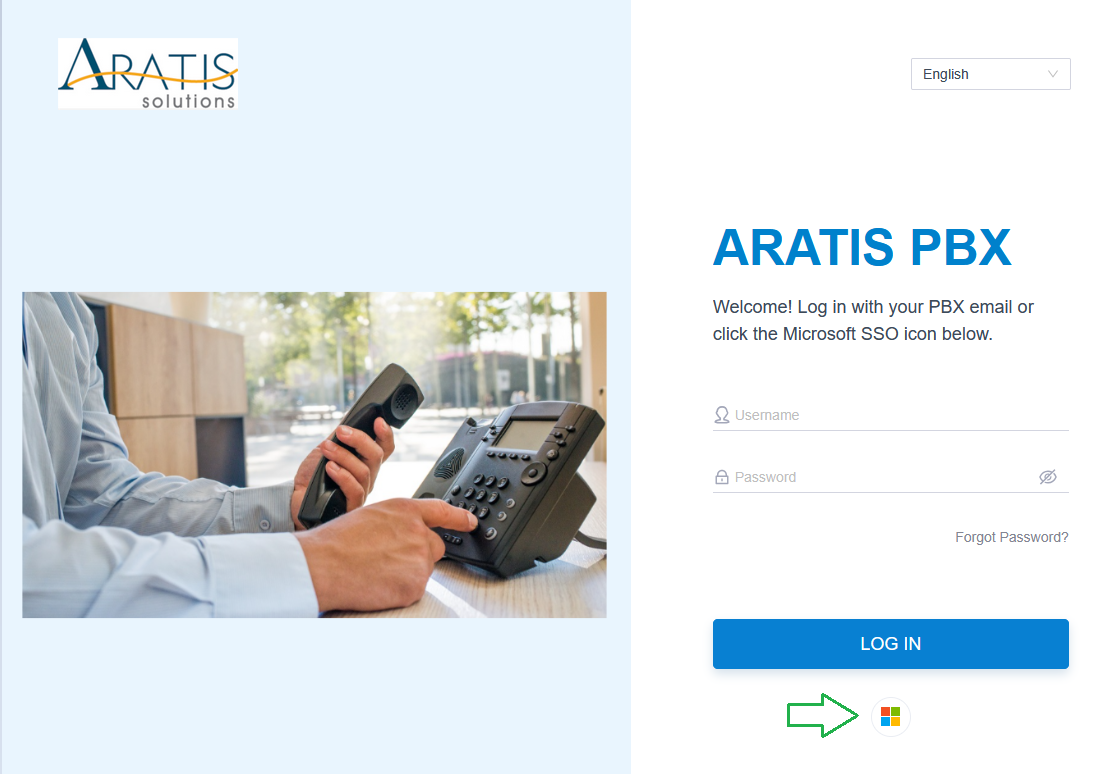
- Select Microsoft SSO: Choose the option to log in with your Microsoft account.
- Enter Microsoft Credentials: Input your Microsoft account email and password. You may be prompted to authenticate via Microsoft’s secure login process.
- Access Granted: Upon successful authentication, you will be logged into the Linkus UC Client with full access to Aratis Telephone Service features.
Supported Linkus Client Versions
To use SSO, ensure your Linkus UC Client is updated to the following minimum versions:
- Linkus Android Client: Version 4.9.6 or later
- Linkus iOS Client: Version 4.9.5 or later
- Linkus Windows Desktop: Version 1.4.9 or later
- Linkus Mac Desktop: Version 1.4.9 or later
To update, visit your device’s app store (Google Play Store or Apple App Store) or download the latest desktop client from the Aratis website.
Troubleshooting Tips
- Login Issues: If you encounter issues logging in, verify that your Microsoft account is synced with the Aratis PBX and that you’re using the correct email address.
- Outdated Client: Ensure your Linkus UC Client is updated to the required version for SSO compatibility.
- Contact Support: If problems persist, reach out to your Aratis representative or support team for assistance.
Benefits of SSO with Aratis
- Simplified Access: Log in with existing Microsoft credentials, reducing password fatigue.
- Enhanced Security: Leverage Microsoft’s robust authentication protocols.
- Efficient Management: Daily sync ensures user data remains up-to-date across platforms.
Get Started Today
SSO integration with Microsoft Entra ID makes accessing Aratis Telephone Service faster and more secure. Contact your Aratis representative to enable this feature and elevate your team’s communication experience.
For further assistance, reach out to Aratis Solutions support at 1-832-510-6014 or support@aratis.io or https://support.aratis.io/.
.